前言
在 MBP 上使用远程桌面连接 Windows 是一项高频需求,但 macOS 与 Windows 物理键位的差异(尤其是 Command 和 Control 的位置)常常让人抓狂。
我在寻求解决方案时看到了一个社区讨论帖(V2EX 帖子),评论区中 @Mzs 提到了使用 Karabiner-Elements 进行针对性设置。
经过实测,这个方案在最新的 macOS M4 芯片 以及微软的RDP 应用更名后的 Windows App 应用上依然是“最优解”。
需求分析
macOS 与 Windows 的键盘布局存在底层逻辑冲突:
- 物理位置差异:Mac 的
Command键位于空格键两侧,而 Windows 的Ctrl键位于最左侧。习惯了 Mac 快捷键的用户在远程环境下会习惯性按下Command + C,但在 Windows 中这被识别为Win + C。 - 软件识别限制:虽然“Windows App”内置了一些映射,但无法满足精细化需求(如:左侧三键环状切换)。
我需要一个软件里面,可以根据当前的 app 来应用使用不同的键盘映射。 Karabiner-Elements恰好符合需求。
详细步骤
1. 安装 Karabiner-Elements
首先需要安装这款强大的 macOS 改键工具。
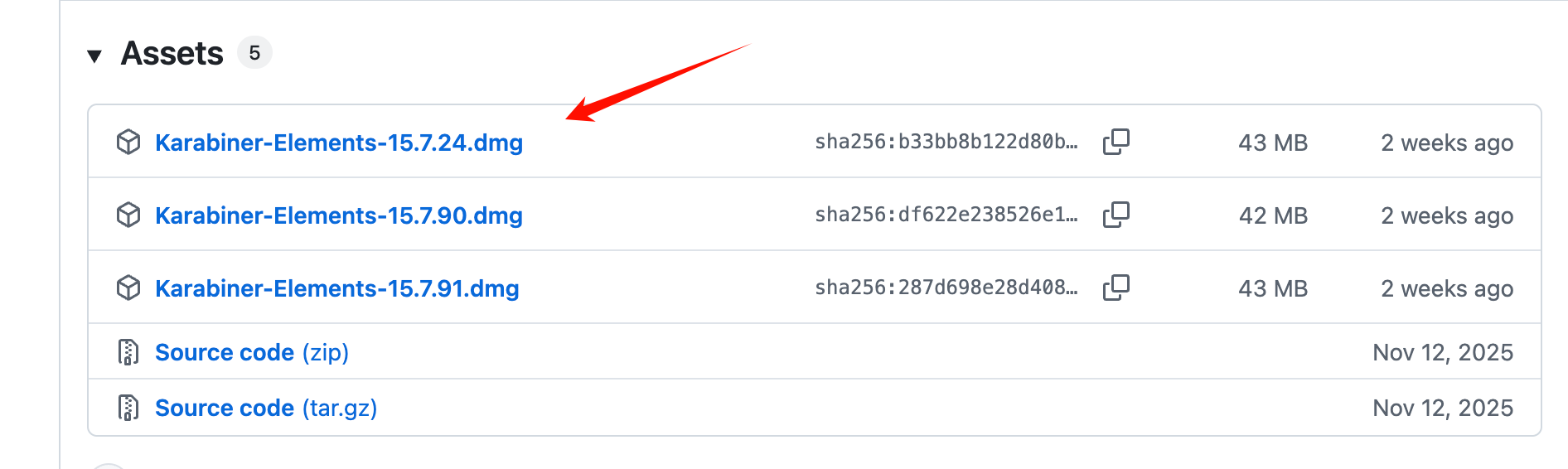
- 下载地址:官网链接
-
Github 下载地址: github.com/pqrs-org/Ka…
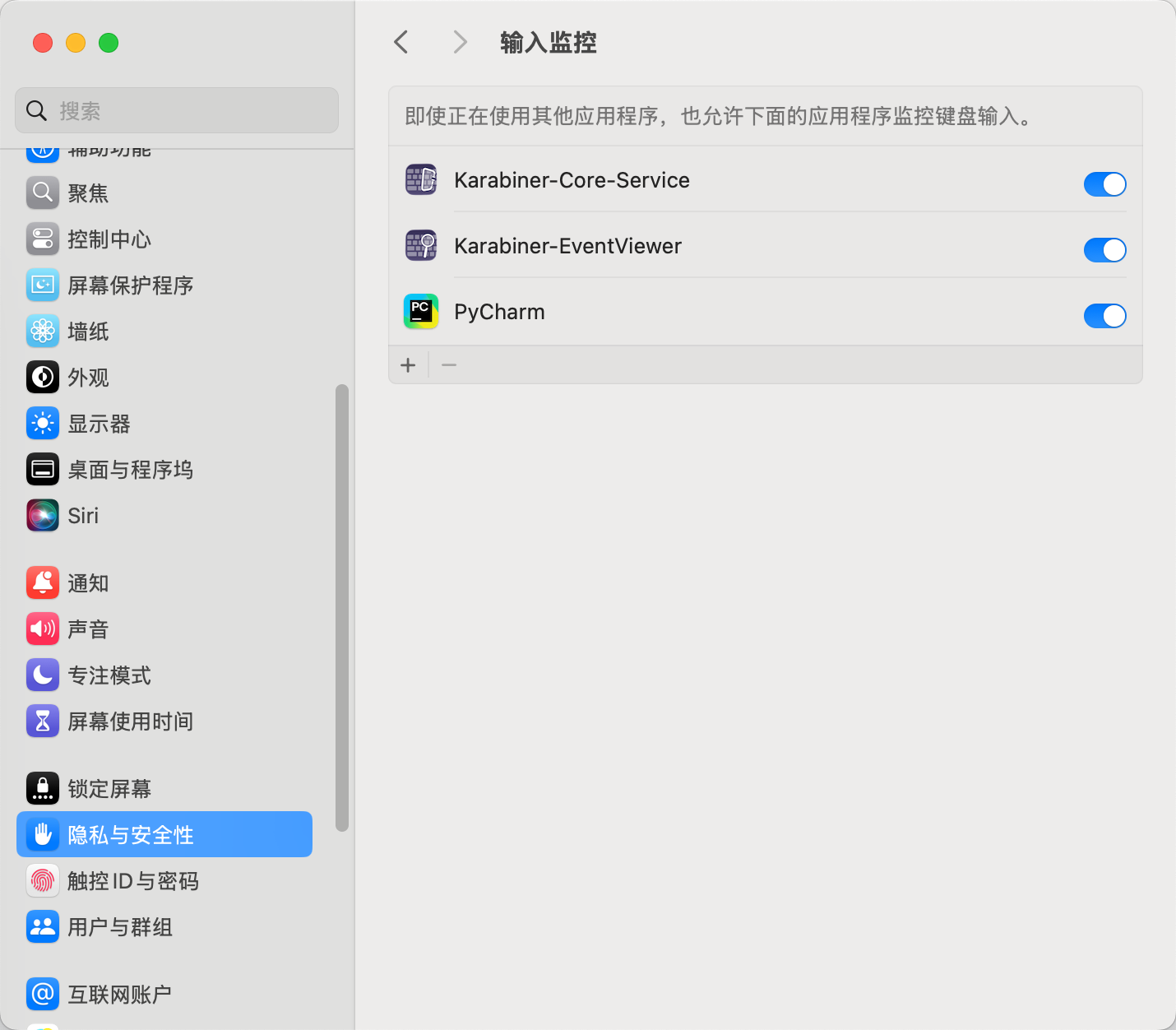
- 安装注意:在 M4 芯片上安装后,系统会提示“系统扩展已被阻止”,请前往 系统设置 > 隐私与安全性,手动点击“允许”并重启系统。
授予权限的流程都比较简单,按照他的提示,它会自动帮你打开对应的设置界面,你勾选这个软件即可
2. 获取 Windows App 的 Bundle Identifier
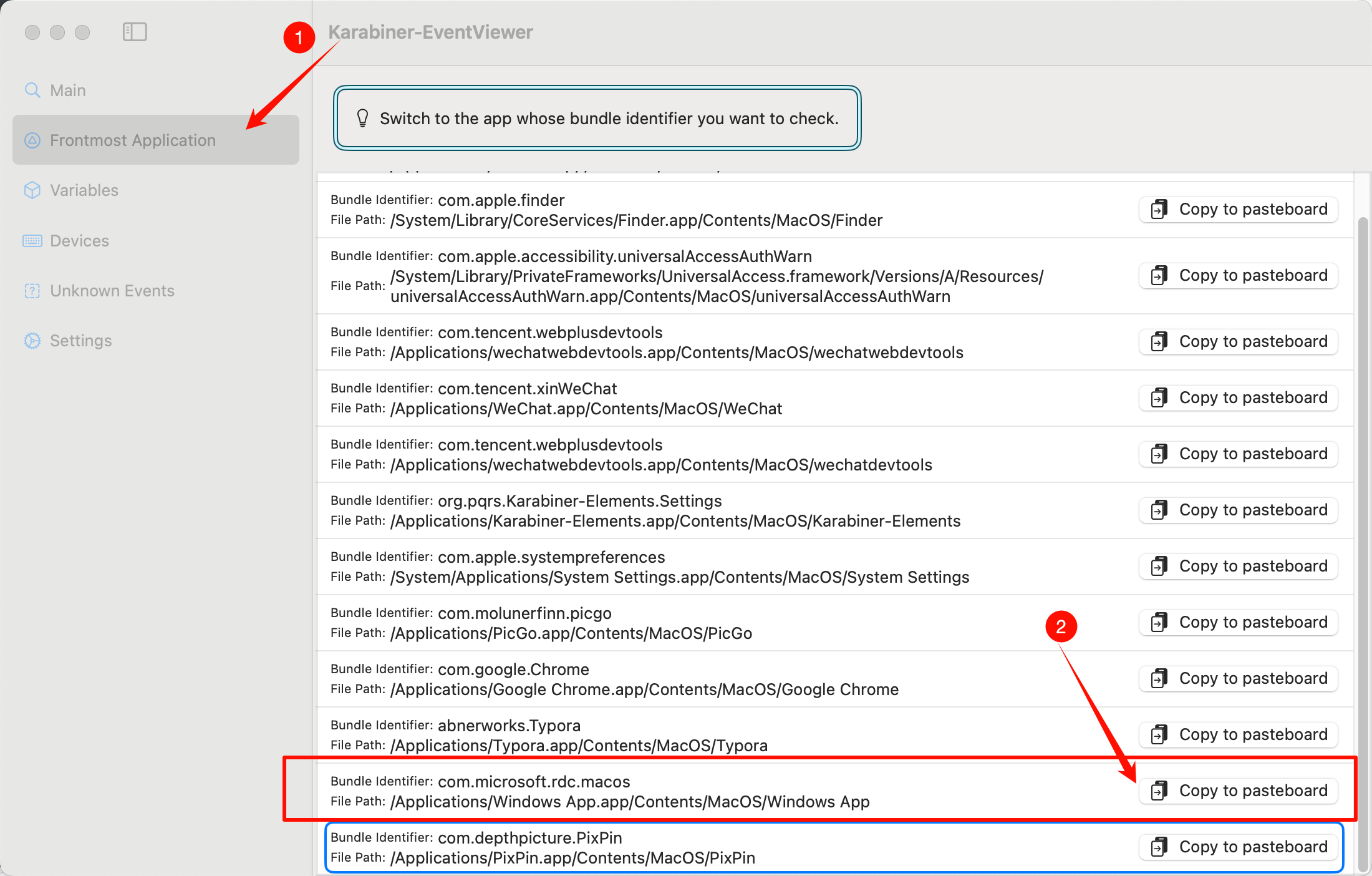
为了让映射只在远程桌面生效,我们需要精准识别最新版 Windows App 的 ID。
- 启动 Karabiner-EventViewer(安装主程序时附带的工具)。
- 切换到 Frontmost application 标签页。
- 点击并激活你的 Windows App 窗口。
- 记录显示的
Bundle Identifier。经实测,最新版通常为com.microsoft.rdc.macos。
3. 配置 Complex Modifications(复杂修改)
这是最核心的一步,我们将通过编写 JSON 脚本来实现左侧三键的重映射。
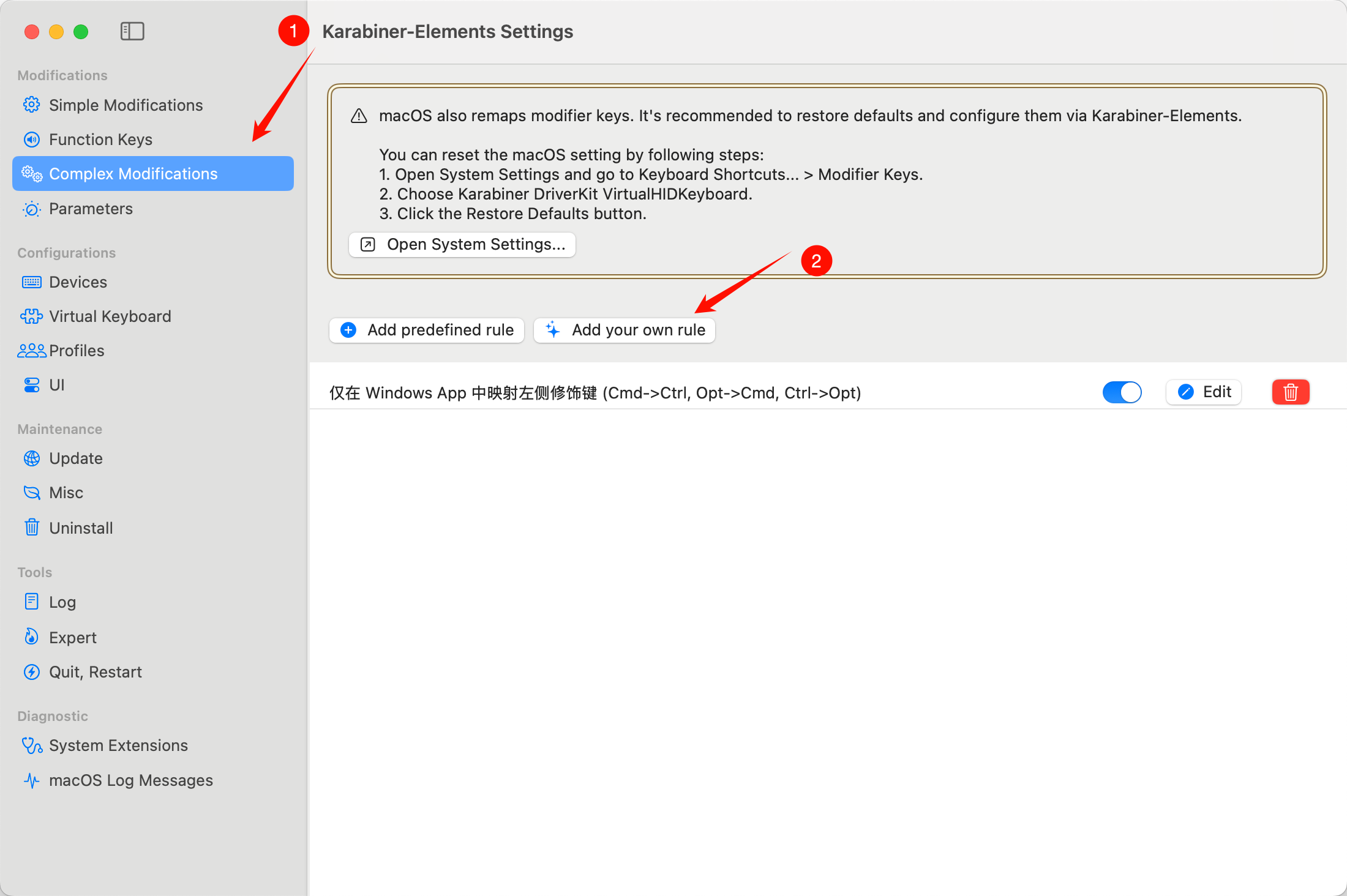
- 打开 Karabiner-Elements Settings。
- 点击左侧的 Complex Modifications 选项卡。
- 点击右下角的 Add your own rule。
- 删除原来的代码,然后将以下代码粘贴到编辑框中并保存:
我这里的代码都是用 gemini 生成的,只需要把复制下来的应用程序(Frontmost Application)的信息发给他,让他实现在这个应用内,按下左边的 command,输出 control 等信息。
JSON
1
2
3
4
5
6
7
8
9
10
11
12
13
14
15
16
17
18
19
20
21
22
23
{
  "description": "Windows App 远程桌面左侧键位优化",
  "manipulators": [
    {
      "type": "basic",
      "from": { "key_code": "left_command" },
      "to": [{ "key_code": "left_control" }],
      "conditions": [{ "type": "frontmost_application_if", "bundle_identifiers": ["^com\.microsoft\.rdc\.macos$"] }]
    },
    {
      "type": "basic",
      "from": { "key_code": "left_option" },
      "to": [{ "key_code": "left_command" }],
      "conditions": [{ "type": "frontmost_application_if", "bundle_identifiers": ["^com\.microsoft\.rdc\.macos$"] }]
    },
    {
      "type": "basic",
      "from": { "key_code": "left_control" },
      "to": [{ "key_code": "left_option" }],
      "conditions": [{ "type": "frontmost_application_if", "bundle_identifiers": ["^com\.microsoft\.rdc\.macos$"] }]
    }
  ]
}
4. 验证映射效果
- 左 Command:现在输出为 Control(实现 Command+C = 复制)。
- 左 Option:现在输出为 Command(调出 Windows 开始菜单)。
- 左 Control:现在输出为 Option(对应 Windows 的 Alt 键)。
- 非目标应用测试:切回 Finder 或 Chrome,所有键位应自动恢复 macOS 原始逻辑。
最后
Bundle ID 变动
如果未来微软更新了 App 名称或架构,请通过步骤 2 重新确认 ID 并更新 JSON 中的 bundle_identifiers 部分。